The right product design tools can save your team hours every week. The wrong ones slow you down, cause messy handoffs, and leave developers guessing. With so many apps out there, it's hard to know which ones are worth learning.
This guide covers 15 product design tools for UI/UX work, grouped by what they actually help you do: design screens, sketch ideas, test with users, and hand work over to developers. For each one, you'll see what it does well, where it falls short, and who it suits best.
What Are Product Design Tools?
Product design tools are apps that help teams plan, design, test, and build digital products like websites, mobile apps, and software. They cover the whole journey, from early sketches and user research to polished screens, clickable prototypes, and developer handoff.
Note that "product design" can also mean designing physical things, like furniture or gadgets. Tools such as SolidWorks or Fusion 360 are built for that. This guide is about digital products only, so you won't find 3D CAD software here.
Most teams don't use one tool for everything. A typical setup has one main design tool, a whiteboard for ideas, a research tool for testing, and something to keep designs and code in sync.
Best Product Design Tools at a Glance
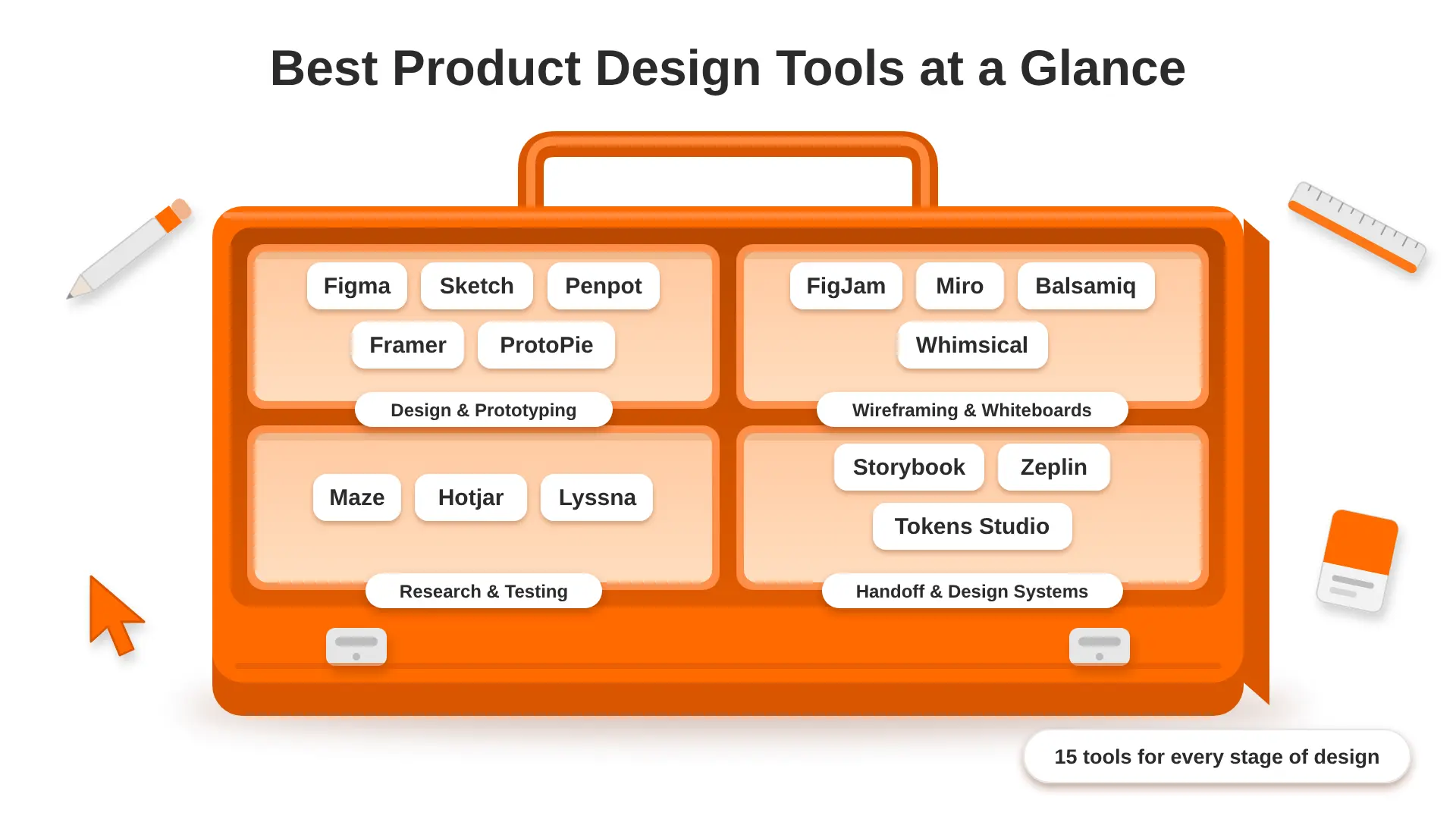
Free plans change often, so check each tool's pricing page before you commit.
UI Design and Prototyping Tools
These are the tools where screens are actually designed. Most teams pick one and build everything around it.
1. Figma
Figma is the main design tool for most UI/UX teams today. It runs in the browser, so everyone works on the same file at the same time.
- Key features: real-time collaboration, auto layout, components and variables, clickable prototypes, Dev Mode for developers, and AI features such as Figma Make, which turns designs and prompts into working prototypes
- Pros: easy to share, huge plugin library, works on Mac and Windows
- Cons: needs an internet connection for most work, and paid seats add up for bigger teams
- Best for: almost any team designing websites, apps or SaaS products
If you're weighing up older options, our Figma vs Adobe XD comparison explains why most teams have moved to Figma.
2. Sketch
Sketch was one of the first modern UI design tools. It's a native Mac app, which many designers like for its speed and offline use.
- Key features: symbols and libraries, smart layout, prototyping, and a web app for sharing and inspecting designs
- Pros: fast, stable, and works well offline
- Cons: the design app is Mac-only, and real-time teamwork isn't as smooth as Figma
- Best for: solo designers or small teams who all use Macs
3. Penpot
Penpot is a free, open-source design and prototyping tool that runs in the browser. You can use the hosted version or run it on your own servers.
- Key features: components, flex and grid layouts that match how CSS works, prototyping, and design tokens
- Pros: free, no lock-in, and self-hosting helps teams with strict data rules
- Cons: smaller plugin library and community than Figma
- Best for: startups on a tight budget, open-source fans, and teams that need to keep data in-house
Because Penpot is built on open web standards like SVG and CSS, the step from design to code often feels more natural for developers.
4. Framer
Framer started as a prototyping tool and is now best known as a website builder for designers. You design a page and publish it as a live site from the same place.
- Key features: visual design canvas, animations, a built-in CMS, hosting, and AI help to draft pages
- Pros: very fast for landing pages and marketing sites, with smooth animations
- Cons: less suited to complex apps or content-heavy sites
- Best for: marketing sites, portfolios and product launch pages
If your marketing site needs more structure and a stronger CMS, a Webflow design and development approach is often a better fit.
5. ProtoPie
ProtoPie is built for prototypes that feel like the real app. It can use phone features like tilt, voice, and touch gestures.
- Key features: conditions and variables, sensor-based interactions, testing on real devices, and imports from Figma
- Pros: creates very lifelike prototypes without code
- Cons: takes time to learn, and it's overkill for simple click-throughs
- Best for: mobile app teams testing complex interactions
For more options in this area, see our guide to mobile app prototyping tools.
Wireframing and Whiteboard Tools
These tools help you think before you design. They're ideal for early ideas, user flows, and team workshops.
6. FigJam
FigJam is Figma's online whiteboard. It sits in the same workspace, so ideas can move straight into design files.
- Key features: sticky notes, diagrams, voting, timers, and templates for workshops
- Pros: easy for non-designers, and it connects neatly with Figma
- Cons: fewer advanced features than Miro for very large workshops
- Best for: teams already using Figma
7. Miro
Miro is a large online whiteboard used by product, design, and engineering teams together.
- Key features: infinite canvas, hundreds of templates, integrations with tools like Jira, and AI helpers for summaries and diagrams
- Pros: great for big, cross-team sessions and remote workshops
- Cons: the free plan limits how many boards you can edit
- Best for: larger organisations and product teams running regular workshops
8. Balsamiq
Balsamiq makes low-fidelity wireframes that look like hand-drawn sketches. That rough style keeps feedback focused on layout, not colours.
- Key features: drag-and-drop UI elements, quick linking between screens, and a simple interface
- Pros: very quick to learn, even for non-designers
- Cons: no high-fidelity design, and there's no free plan beyond the trial
- Best for: founders, product managers and early-stage ideas
9. Whimsical
Whimsical brings flowcharts, wireframes, mind maps and docs together in one clean tool.
- Key features: fast flowcharts, simple wireframe kits and AI help to build diagrams
- Pros: very clean and quick, with a gentle learning curve
- Cons: wireframes stay basic, so you'll still need a main design tool
- Best for: mapping user flows and site structures
User Research and Testing Tools
Good design depends on real feedback. These tools help you test ideas with users before and after launch.
10. Maze
Maze lets you test prototypes with real users without being in the room. You share a link, and Maze collects clicks, paths, and answers.
- Key features: prototype testing from Figma, surveys, card sorting and tree testing
- Pros: quick results and easy-to-read reports
- Cons: the best features sit on paid plans
- Best for: teams that want fast, regular usability tests
11. Hotjar
Hotjar shows how people use a live website. Heatmaps reveal where users click and scroll, and session recordings show real visits.
- Key features: heatmaps, session recordings, on-site surveys and feedback widgets
- Pros: easy to set up with one tracking code, and very visual
- Cons: only works on live sites, not prototypes
- Best for: improving websites and web apps after launch
12. Lyssna
Lyssna, formerly known as UsabilityHub, runs short research tests that take minutes to set up.
- Key features: five-second tests, first-click tests, preference tests, surveys, and a panel of testers you can recruit from
- Pros: simple, fast and good value for quick design decisions
- Cons: not built for long, in-depth interviews
- Best for: checking designs, layouts and messages before you build
Design System and Handoff Tools
These tools make sure what developers build matches what designers designed.
13. Storybook
Storybook is a free, open-source tool where developers build and document UI components, like buttons and cards, one at a time.
- Key features: a live component library, visual testing, and documentation
- Pros: designers and developers see the real coded components in one place
- Cons: needs a developer to set up and maintain
- Best for: teams with a growing design system and front-end developers
14. Zeplin
Zeplin turns finished designs into clear specs, assets, and style guides for developers.
- Key features: measurements, colour and text styles, downloadable assets and version history
- Pros: keeps handoff tidy, especially for large projects
- Cons: some teams find Figma's Dev Mode is enough on its own
- Best for: agencies and teams that want a clean, separate handoff space
15. Tokens Studio
Tokens Studio is a Figma plugin for managing design tokens. Tokens are named values, like "primary-colour" or "spacing-small", that both designers and developers use.
- Key features: token sets and themes, and syncing with code repositories like GitHub
- Pros: keeps colours, spacing and type consistent across design and code
- Cons: takes some planning to set up properly
- Best for: teams building or scaling a design system
Picking consistent colour values is the first step. Our guide to colour combinations for websites and brands can help you choose the palette your tokens will hold.
AI Product Design Tools Worth Knowing
AI is now built into many design tools. It works best for speeding up early steps, not for replacing design thinking.
- Figma Make: announced at Figma's Config 2025 product launch, it turns prompts and existing designs into interactive, coded prototypes.
- Uizard: creates rough mock-ups from text prompts, sketches or screenshots.
- Google Stitch: an experimental tool from Google that turns text prompts into UI layouts.
- AI features inside Miro, Whimsical and Framer: help draft diagrams, page layouts and copy.
Use AI output as a starting point. You'll still need to check spacing, accessibility and whether the design solves the real user problem.
Tools You May Want to Skip in 2026
Some tools still appear in older lists but aren't a good choice for new projects.
- InVision: shut down its design collaboration services at the end of 2024. Existing files had to be exported.
- Adobe XD: Adobe has said XD is in maintenance mode and isn't selling it as a standalone app to new customers, as The Register reported. It still works for existing users, but it won't get major new features.
If your team still has files in either tool, plan a move to Figma or Penpot sooner rather than later.
How These Tools Work Together on a Real Project
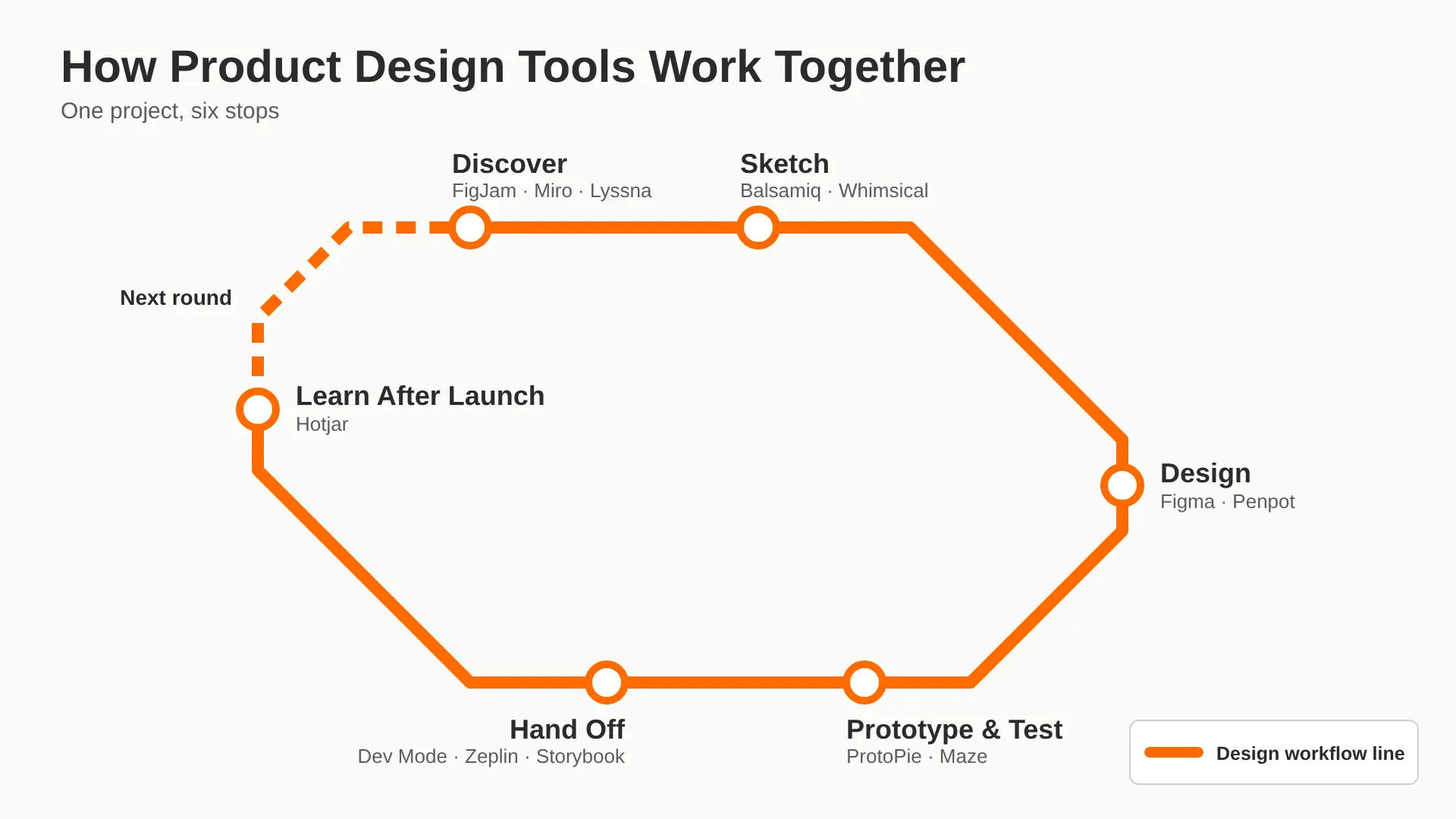
Tools make the most sense when you see them in a real workflow. Here's how a typical app or website project might move through them:
- Discover. The team maps the problem, user journeys, and ideas in FigJam or Miro. Quick Lyssna tests check early messages or layout ideas.
- Sketch. Simple wireframes in Balsamiq or Whimsical show page structure without colour or detail.
- Design. Screens are built in Figma (or Penpot), using shared components, colour styles and tokens.
- Prototype and test. Key flows are linked into a prototype, or built in ProtoPie for complex interactions, then tested with real users in Maze.
- Hand off. Developers use Figma Dev Mode or Zeplin for specs, while Storybook keeps coded components in line with the design.
- Learn after launch. Hotjar shows where real users click, scroll or get stuck, and those insights feed the next round of design.
Each step answers a different question, so the tools rarely clash. Problems usually start when two tools try to do the same job, or when nobody owns the handoff between design and code.
How to Choose the Right Product Design Tool
There's no single best tool for everyone. These questions will help you decide:
- Which stage do you need help with? Design, research, testing, or handoff each needs different tools.
- How does your team work? Remote teams need real-time collaboration. Solo designers may care more about speed.
- What devices do you use? Sketch needs a Mac. Browser-based tools like Figma and Penpot work anywhere.
- How will developers use the designs? Check how specs, assets and code reach them.
- What's your budget? Count the cost per seat, not just the first plan. Prices are usually listed in USD.
- Do you have data rules? If you need to keep files on your own servers, look at self-hosted options like Penpot.
A common mistake we see is teams paying for overlapping tools. Before adding a new app, check whether your main tool already covers that job.
A Simple Product Design Toolkit for Small Teams
If you're starting out, you don't need 15 tools. A lean setup covers most needs:
- Design and prototyping: Figma (or Penpot if budget is tight)
- Ideas and workshops: FigJam
- Testing before launch: Maze or Lyssna
- Learning after launch: Hotjar
- Handoff: Figma Dev Mode, then Storybook once your component library grows
For SaaS products, this toolkit also works well for dashboards and data-heavy screens. Our SaaS dashboard design guide shows how to put it into practice.
FAQs About Product Design Tools
What is the most popular product design tool?
Figma is widely seen as the most popular product design tool for UI/UX work today. It runs in the browser, supports real-time teamwork, and covers design, prototyping, and developer handoff in one place. That's why most product teams and agencies now use it as their main tool.
Is there a free product design tool?
Yes. Penpot is completely free and open source. Figma, Framer, FigJam, Whimsical, Maze, Hotjar and Lyssna all have free plans with some limits. These are enough for students, freelancers and small projects, though growing teams usually need paid plans.
What tools do UX designers use?
Most UX designers use a main design tool like Figma, a whiteboard like FigJam or Miro, and research tools such as Maze, Lyssna or Hotjar. For handoff, they often use Figma Dev Mode, Zeplin or Storybook. The exact mix depends on the team and project.
Which tool is best for prototyping?
Figma is best for most prototypes, as you can design and link screens in one place. For very realistic mobile interactions, such as gestures or sensors, ProtoPie is a stronger choice. Framer is good when the prototype is a website you want to publish.
Are AI design tools replacing designers?
No. AI tools can draft layouts, wireframes and simple prototypes quickly, but they don't understand your users, business goals or brand. Designers still need to research, make decisions and check quality. AI is best used to speed up early and repetitive tasks.
Final Thoughts
The best product design tools are the ones your team will actually use well together. For most teams, that means Figma at the centre, a whiteboard for ideas, a testing tool for real feedback and a clear handoff process. Start small, cut tools that overlap and add new ones only when they solve a real problem.
If you'd like help turning your ideas into tested, user-friendly screens, our UI/UX design agency in the UK can support you from early research to final product design and handoff.