.svg)


Mobile app prototyping tools help you test screens, buttons, and user journeys before you build an app. Some let people tap through a design. Others let you test real actions, such as signing in or saving data.
For screen design and teamwork, start by comparing Figma and Penpot. For detailed gestures and motion, look at ProtoPie. If you need a working demo with data, consider FlutterFlow or Bubble.
This guide compares 30 options by purpose, free access, and key limitations. It also explains which tools suit Android and iOS ideas, beginners, and more complex projects.
Note: Prices shown are in US dollars. Annual prices mean a yearly commitment.
What Is Mobile App Prototyping?
Mobile app prototyping means creating a sample version of an app before building the real product. It lets people click through screens, follow a user journey, and give feedback early.
What is a Rapid Prototyping Tool
A rapid prototyping tool helps you make that sample quickly. It may offer ready-made screens, simple shapes, or AI help. The aim is to answer a question, such as whether people can complete a booking without help.
A prototype does not need every feature. It needs enough detail to test the idea. If the user journey is still unclear, a UI/UX design service can help turn it into wireframes and testable screens.
The best tool depends on what you need right now. A rough idea needs a simple tool. A real-looking app test needs a stronger tool. A working no-code test needs a different type of tool.
30 Best Mobile App Design Prototyping Tools
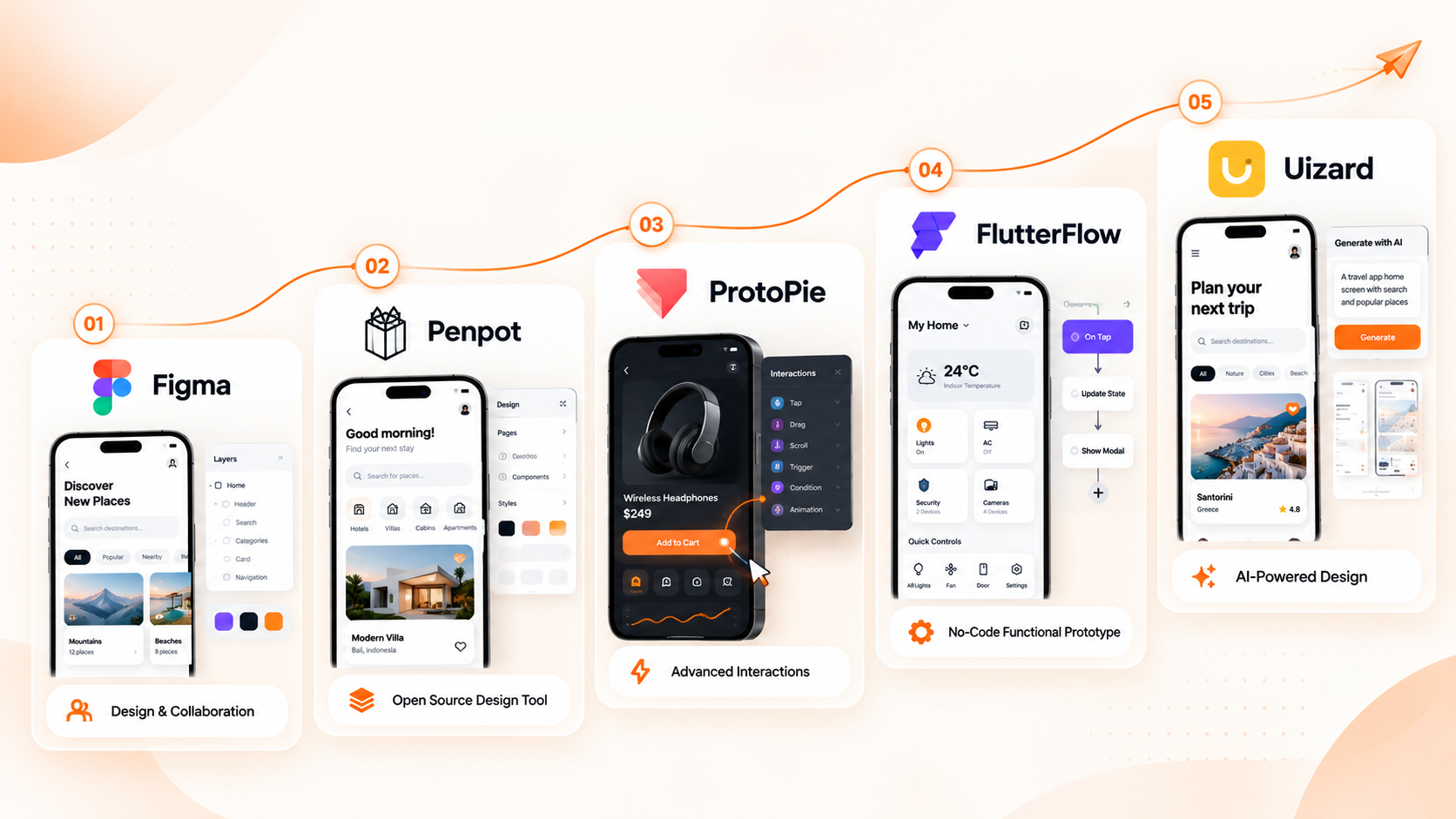
Below, the tools are grouped by the job they do. This makes it easier to pick one.
Best Design and Collaboration Tools
1. Figma
Best for: Product teams that need UI design, collaboration, clickable flows, and developer handoff in one place.
What works well: Figma lets designers, founders, and developers work on the same file at the same time. It has strong component systems, shared libraries, comments, and prototype links. It works well for most app screens and core user flows.
Watch out for: Very complex logic, sensor actions, and advanced motion may need another tool.
Pricing note: Free plan: Yes (Starter, 3 projects, 2 members). Monthly: Professional $15/editor. Yearly: Professional $12/editor/month billed annually, Organization $45/editor/month annually. Offers: design collaboration plans with free viewers; Enterprise price not verified.
Prototype type: Clickable and high-fidelity.
2. Penpot
Best for: Teams that need an open-source option or more control over where design files are stored.
What works well: Penpot supports interface design, collaboration, components, and prototypes in a browser. It can be useful for teams with strict data rules or teams that prefer open-source tools.
Watch out for: Its plugin library and community resources are smaller than Figma’s.
Pricing note: Free plan: Yes (open source, no feature limits). Monthly/yearly: Unlimited $7/editor/month, capped at $175/month per team (annual vs. monthly not verified). Offers: Enterprise $25/member/month, Private Server about $50K/year.
Prototype type: Clickable and high-fidelity.
3. Sketch
Best for: Mac-based designers who prefer a fast native design tool.
What works well: Sketch is a mature interface design tool with symbols, shared libraries, and a clean editing experience. It suits teams that already use macOS and have an established Sketch workflow.
Watch out for: Editing is limited to Mac. Teams using Windows may find Figma easier for collaboration.
Pricing note: Free plan: No (30-day trial, free education seats). Monthly: not verified. Yearly: Standard $12/editor/month billed yearly, Professional $24, Enterprise $44. Offers: collaboration plans, or a one-time $120 Mac-only license with one year of updates.
Prototype type: Clickable and high-fidelity.
4. Framer
Best for: Teams that want polished interactive concepts and web-first product experiences.
What works well: Framer makes it easier to show transitions, responsive layouts, and polished interactions. It is useful when a prototype needs to look close to a live digital product.
Watch out for: It is more web-focused than a dedicated native mobile prototyping tool.
Pricing note: Free plan: Yes (Framer domain, 1 GB bandwidth, AI credits). Monthly/yearly: Basic $10/month, Pro $30/month (billing basis not stated; custom domain is free on yearly billing). Offers: per-site plans, extra editors $20/month each, viewers free.
Prototype type: High-fidelity interactive concept.
5. UXPin
Best for: Teams that need design systems and code-based components in prototypes.
What works well: UXPin can help teams build prototypes from reusable components. This is useful when a design system already exists, and the team wants screens to stay consistent.
Watch out for: It may feel more complex than Figma for a quick early idea.
Pricing note: Free plan: Limited (2 prototypes, 50 AI credits, plus a 14-day trial). Monthly: Core $49/seat, Growth $69/seat. Yearly: Core $29/seat/month, Growth $40/seat/month. Offers: per-seat prototyping with AI credits; extra credit packs about $13–$115/month.
Prototype type: High-fidelity.
Tools for Advanced Interactions and App Logic
6. ProtoPie
Best for: Motion-heavy mobile prototypes, gestures, sensors, and device-like interactions.
What works well: ProtoPie can simulate swipes, taps, voice input, camera actions, and other realistic mobile behaviours. It is strong for apps where movement and device actions matter.
Watch out for: It is more advanced than most teams need for a simple app flow.
Pricing note: Free plan: Yes (2 prototypes, 8 scenes each, 50 MB). Monthly/yearly: Basic $25/month for 1 seat, Pro $47/editor/month (billing basis unverified); annual saves up to 26%. Offers: interactive prototyping; Enterprise is custom with a 3-seat minimum.
Prototype type: High-fidelity interactive prototype.
7. Proto.io
Best for: Teams that want mobile-first prototypes with ready-made iOS and Android components.
What works well: Proto.io includes mobile UI patterns, gestures, animations, and a preview experience for phones. It is useful when a team wants to show a realistic mobile flow without building every part from scratch.
Watch out for: It may not fit teams already fully invested in Figma.
Pricing note: Free plan: Yes, limited (1 user, 1 project, 5 screens, 10 MB). Monthly: Freelancer $29, Startup $49, Agency $99, Corporate $199 (likely monthly rates). Yearly: annual savings up to 20%. Offers: flat bundles by user and project count, not per seat.
Prototype type: Clickable and high-fidelity.
8. Axure RP
Best for: Enterprise apps with conditional logic, data states, and detailed functional requirements.
What works well: Axure can show what happens when a user takes different actions. It is useful for complex dashboards, approval systems, portals, and business tools with many rules.
Watch out for: It has a steep learning curve and may be too much for a simple customer app.
Pricing note: Free plan: No (trial; free Team edition for students and educators). Monthly/yearly: Pro $29/user/month, Team $49/user/month (billing basis unverified). Offers: advanced prototyping; perpetual licenses are no longer offered.
Prototype type: Interactive, logic-heavy prototype.
9. Justinmind
Best for: Complex mobile and web prototypes connected to requirements and user flows.
What works well: Justinmind supports conditions, forms, realistic mobile widgets, and detailed user journeys. It can work well for teams that need prototypes and product requirements to stay close together.
Watch out for: The interface may feel less modern than newer tools.
Pricing note: Free plan: Yes (1 project, unlimited screens, unlimited viewers). Monthly/yearly: Standard $19/editor/month, Professional $29, Enterprise $59 (billing basis unverified). Offers: one-time licenses also available (Standard $295, Professional $455, renewals 20%/year).
Prototype type: Interactive and high-fidelity.
10. Origami Studio
Best for: Designers who want advanced, node-based interaction design and are ready for a steeper learning curve.
What works well: Origami Studio is powerful for rich interactions, live previews, and data-aware motion. It suits designers who enjoy detailed control over how screens react.
Watch out for: It takes time to learn and is mainly for Mac users.
Pricing note: Free plan: Free only; no paid tiers. Offers: free Mac prototyping tool from Meta.
Prototype type: High-fidelity interaction prototype.
11. Principle
Best for: Mac designers who need detailed transitions and micro-interactions.
What works well: Principle gives designers control over timing, movement, and small screen behaviours. It is useful for showing how an app should feel between screens.
Watch out for: It is not a full team collaboration or design-system tool.
Pricing note: Free plan: No (14-day trial). Cost: $129 one-time for a single-user license. Offers: Mac animation and prototyping app; no subscription.
Prototype type: High-fidelity animation prototype.
12. Flinto
Best for: Mac-based teams creating high-fidelity animated app prototypes.
What works well: Flinto is built around mobile transitions and interactive screens. It can help a team present a polished app idea without writing code.
Watch out for: It is Mac-only and has fewer collaboration features than browser-based tools.
Pricing note: Free plan: No (30-day trial). Monthly: Flinto Lite $20/member. Yearly: 10% off, about $216/year per member. Offers: web-based prototyping; the Mac app is priced separately (not verified).
Prototype type: High-fidelity animated prototype.
Best Wireframing Tool for Mobile App Planning
13. Balsamiq
Best for: Fast, low-fidelity wireframes that keep feedback focused on structure and flow.
What works well: Balsamiq looks intentionally rough. This helps people talk about what the app should do instead of debating colours and button styles too early.
Watch out for: It is not meant for polished screens or advanced interaction testing.
Pricing note: Free plan: No (14-day trial, no card needed). Monthly: not verified. Yearly: Starter $16/editor/month, Teams $24, Enterprise $35 (all billed annually). Offers: wireframing with 10, 100 or 400 projects and monthly AI credits; reviewers are unlimited and free.
Prototype type: Low-fidelity wireframe.
14. Mockplus
Best for: Beginners who need templates, components, and quick interactive screens.
What works well: Mockplus offers ready-made UI parts and quick linking between screens. It is helpful when a team needs a simple prototype without a long setup process.
Watch out for: Free plan: Yes (3 prototypes, 10 pages each; Team Free for up to 10 users). Yearly: Individual $49.50/year, Team Ultimate $12.45/user/month billed annually (both sale prices, normally $99 and $24.90). Offers: Individual Perpetual $249.50 one-time (sale price); Enterprise custom.
Pricing note: Free and paid options are available.
Prototype type: Low to high-fidelity.
15. Marvel
Best for: Simple clickable prototypes and early user feedback.
What works well: Marvel is easy to learn. Teams can upload screens, link them together, share a prototype, and collect simple feedback.
Watch out for: It has limited advanced logic, motion, and developer handoff tools.
Pricing note: Free plan: Yes (1 project). Monthly: not verified. Yearly: Pro $12/user/month, Team $42/user/month (Team price is from a third-party tracker). Offers: design and prototyping; 70% education and 50% nonprofit discounts on yearly plans.
Prototype type: Clickable prototype.
16. Visily
Best for: Non-designers who need fast wireframes and AI-assisted screen ideas.
What works well: Visily helps founders and business teams turn ideas into clear screens without needing deep design skills. It can speed up early workshops and product planning.
Watch out for: A final product still needs design review for usability, accessibility, and brand consistency.
Pricing note: Free plan: Yes (Starter, 300 AI credits/month, limited boards). Monthly/yearly: Pro $14/editor/month (billing basis unclear), Business $29/editor/month billed annually. Offers: AI credits of 3,000 (Pro) and 10,000 (Business), plus SSO and priority support on Business.
Prototype type: Low to mid-fidelity.
17. Uizard
Best for: Turning rough ideas, screenshots, or text prompts into editable app screens.
What works well: Uizard can help teams move from a written idea to a visual first draft quickly. It is useful for early exploration when there is no designer or existing screen set.
Watch out for: AI-generated screens need human review before testing with users or handing over to developers.
Pricing note: Free plan: Yes (3 AI generations/month, 2 projects). Monthly: not verified. Yearly: Pro $12/month, Business $39/month (both billed annually). Offers: 500 generations and 100 projects on Pro; 5,000 generations and unlimited projects on Business.
Prototype type: Mid-fidelity.
18. Miro
Best for: Planning user journeys, workshops, app maps, and early product flows.
What works well: Miro gives teams one shared space for notes, flow maps, sketches, feedback, and planning. It is useful before visual design starts.
Watch out for: Miro is not a detailed mobile UI design tool.
Pricing note: Free plan: Yes (3 editable boards, unlimited members). Monthly: not verified; annual billing saves 20% versus monthly. Yearly: Starter $8/member/month, Business $20/member/month. Offers: AI credits per member (25 on Starter, 50 on Business); guests don't use paid seats.
Prototype type: Low-fidelity planning prototype.
19. Whimsical
Best for: Simple user flows, wireframes, and team planning before visual design starts.
What works well: Whimsical is quick for flowcharts, wireframes, and early discussions. It helps teams make a product idea easier to explain.
Watch out for: It is not designed for rich mobile interactions or detailed visual screens.
Pricing note: Free plan: Yes (50 boards and doc objects, 7-day version history). Monthly/yearly: Pro $10/editor/month, Business $20/editor/month (billing basis not stated); annual saves about 17%. Offers: Business adds private teams, SSO, and unlimited version history; viewers are free.
Prototype type: Low-fidelity wireframe.
20. MockFlow
Best for: Teams that need quick wireframes, page flows, and a simple collaborative workspace.
What works well: MockFlow is useful for early screen planning, site maps, and app flows. It gives teams a fast way to turn ideas into a shared visual plan.
Watch out for: It is best for early planning, not a final high-fidelity prototype.
Pricing note: Free plan: Yes (1 editor, 5 reviewers, 4 projects, 100 AI credits/month). Monthly/yearly: Plus and Max dollar prices not verified; yearly billing saves 25%. Offers: Max adds 2,000 AI credits per editor, SSO, offline app and wireframe-to-code export; a 10-day Day Pass is sold one-time.
Prototype type: Low-fidelity wireframe.
No-Code App Prototype Builders for Working Demos
These tools can create a more functional first version of an app. However, a production app still needs careful review for security, performance, data handling, testing, and long-term support.
21. FlutterFlow
Best for: Building a functional mobile app prototype with Flutter output.
What works well: FlutterFlow lets teams build screens, connect data, create workflows, and test a more realistic app experience. It can help founders validate an idea beyond a clickable design.
Watch out for: Complex app logic can become difficult without strong product and technical planning.
Pricing note: Free plan: Yes (2 projects, 10 Lite credits). Monthly: Basic $39/user, Growth $80 for the first seat and $55 for the second, Business $150 for the first seat and $85 for seats 2–5. Yearly: about 25% off (exact rate not verified). Offers: low-code Flutter app building with monthly credits.
Prototype type: Functional prototype.
22. Bubble
Best for: Testing workflows, data, and business logic in a functional product prototype.
What works well: Bubble can help teams build workflows, user accounts, data views, and business rules without writing all code from scratch. It is useful for testing a full product idea.
Watch out for: It is more web-focused. Check whether it suits your mobile app needs before committing.
Pricing note: Free plan: Yes (1 editor, 50K workload units/month). Monthly: not verified. Yearly: Starter $59/month, Growth $209/month (2 editors), Team $549/month (5 editors), all billed annually. Offers: per-app plans with usage quotas and pay-as-you-go overages.
Prototype type: Functional prototype.
23. Glide
Best for: Simple internal tools, directories, dashboards, and data-led app ideas.
What works well: Glide is fast for turning structured data into a useful app. It can work well for internal operations, simple portals, or an early business workflow.
Watch out for: It may not suit a highly custom customer-facing mobile app.
Pricing note: Free plan: Yes (limited credits). Monthly: Basic $25, Plus $50, Pro $125. Yearly: discount not verified. Offers: no-code apps with credits; Pro includes 50 credits per team member, starting at 5 members.
Prototype type: Functional prototype.
24. Adalo
Best for: Beginners creating simple mobile app prototypes without code.
What works well: Adalo provides a visual way to create screens, forms, user accounts, and basic app actions. It can help a founder test a focused idea.
Watch out for: Complex features, advanced scale, and custom integrations need careful planning.
Pricing note: Free plan: Yes (500 records per app, 1 editor). Monthly: Starter $43.20, Professional $62.40, Team $192. Yearly: Starter $36/month, Professional $52/month, Team $160/month. Offers: 1, 2, and 5 published apps, respectively, with no usage or token charges.
Prototype type: Functional prototype.
25. Draftbit
Best for: Teams that want visual app building with more developer control over the output.
What works well: Draftbit gives teams a visual builder while still fitting a developer-led workflow. It can be useful when a prototype may later need more custom engineering.
Watch out for: It is less simple for complete beginners than basic no-code tools.
Pricing note: Free plan: Yes (5,000 credits, publishes to a draftbit.dev address). Monthly: Standard $12, Pro $24. Yearly: 20% off. Offers: extra editor seats cost more (price not verified); Enterprise is custom.
Prototype type: Functional prototype.
26. Bravo Studio
Best for: Turning Figma screens into a more functional mobile app prototype.
What works well: Bravo Studio can help teams connect designed screens with data and APIs. It is useful when the visual design is already complete in Figma.
Watch out for: It works best for defined use cases. Complex product rules may need custom development.
Pricing note: Free plan: Yes (Starter, no App Store builds). Monthly: Solo $22. Yearly: option exists, price not verified. Offers: one-time done-for-you build service called Bravo To Go, $999 per app.
Prototype type: Functional prototype.
27. Thunkable
Best for: Beginners, education projects, and simple native mobile app ideas.
What works well: Thunkable uses a visual builder and simple logic blocks. It can help people test a basic mobile app idea without needing a full development team at the start.
Watch out for: Large commercial apps can outgrow simple visual logic.
Pricing note: Free plan: Yes (2,000 AI tokens, 3 public projects). Monthly: Accelerator $19, Builder $59, Advanced $189. Yearly: Accelerator $18/month, Builder $37/month, Advanced $99/month. Offers: AI token allotments per tier; Enterprise and Education are custom.
Prototype type: Functional prototype.
AI Tools for Early Prototype Ideas
AI tools can speed up the first draft. They do not replace user research, UX thinking, accessibility checks, content planning, or technical review.
28. Figma Make
Best for: Teams that want to explore prompt-led concepts inside the Figma workflow.
What works well: Figma Make can help teams move from a short idea to a first interactive direction faster. It can be useful during early product workshops and concept reviews.
Watch out for: AI output should be treated as a first draft, not a finished product design.
Pricing note: Free plan: Yes, limited (about 500 AI credits/month, a third-party figure). Monthly: $15/editor on Figma Professional. Yearly: $12/editor/month on Professional, $45 on Organization. Offers: AI prompt-to-app inside Figma plans; per-plan credit amounts are third-party and not verified.
Prototype type: Interactive concept.
29. Google Stitch
Best for: Quickly turning a written app idea into an editable UI concept.
What works well: Google Stitch can help teams explore screens from prompts and move from an idea to a visual direction quickly.
Watch out for: It is best used for early exploration. Review the structure, user flow, and accessibility before relying on the result.
Pricing note: Free plan: Free only (Google Labs experiment, Google account required). Cost: no paid tier announced. Offers: AI UI design with monthly generation caps (about 350 Standard and 200 Pro, third-party figures from March 2026).
Prototype type: Visual concept.
30. v0
Best for: Teams that want AI-generated interface ideas and React-based front-end output.
What works well: v0 can help teams explore a user interface from a written prompt. It may be useful for web dashboards, responsive app screens, and developer-led concept testing.
Watch out for: It is web-first, not a dedicated native mobile app prototyping tool. Generated output needs development review.
Pricing note: Free plan: Yes (7 messages/day). Monthly: Plus $30/user, Business $100/user. Yearly: not mentioned. Offers: $30 of monthly credits plus $2 of free daily credits; extra credits bought separately.
Prototype type: Functional front-end concept.
Best Free App Prototyping Tools
If you want to make an app prototype for free, start with a small task. You might only need a few screens to test sign-up, a booking, or a simple search.
- Figma Starter: A useful starting point for screen design and basic clickable flows. Paid features become more relevant as your team and design system grow. See Figma's plans.
- Penpot: An open-source choice for teams that want to design and share clickable prototypes in a browser. Its free Professional plan is separate from its paid team plans. See Penpot's plans.
- ProtoPie Free: Useful for trying more detailed interactions. It allows two cloud prototypes with up to eight scenes each. Free access does not include normal sharing links or local file saving, so check how you will show your work. See ProtoPie's free-plan limits.
- Uizard Free: Useful for a small first idea. It includes two projects with up to five screens each and three AI generations per month. See Uizard's plans.
FlutterFlow and Bubble also let you start building for free. However, free building access does not mean every export, hosting or app-store feature is free.
Check the limits that affect your project: screens, sharing, private files, AI use, and publishing. A free trial, such as Balsamiq's, is different from a free plan you can keep using.
Brightin Studio’s Top Picks: Which Mobile App Prototyping Tool Should You Choose?
At Brightin Studio, we do not start with a favourite tool. We start with the question the product needs to answer.
If a founder only needs to test whether users understand an idea, a rough wireframe may be enough. If a team needs to test a full mobile journey, a clickable Figma prototype may be better. If the app depends on gestures, motion, camera use, or location, ProtoPie may show a more realistic experience. If the goal is to test a working business flow, FlutterFlow or Bubble may be worth exploring.
The tool is only the start. A prototype still needs a clear scope, a focused user journey, and real feedback. When you are ready to move from tested screens to a real product, mobile app development services can help connect design, technical planning, development, testing, and launch support.
How to Choose a Mobile App Prototyping Tool
Start With the Main Question
Ask one simple question first: What do I need to learn from this prototype?
Perhaps you want to know whether users understand the idea, can finish a booking, or can find the price before signing up. Choose a tool that helps you test that question.
Choose the Right Prototype Level
Do not make a perfect design too early.
- Use a wireframe to check the layout and order of screens.
- Use a clickable prototype to let people tap through a journey.
- Use a detailed interactive prototype to test movement, gestures, and changing screen states.
- Use a functional demo when you need actions such as logging in or saving data to work.
For example, a booking app prototype may show a confirmation screen without making a booking. A functional demo may save the booking in a test database. Both can be useful, but they answer different questions.
Choose a Tool for Android or iOS
You can plan Android and iPhone screens in tools such as Figma or Penpot. If you need detailed gestures or device behaviour, compare ProtoPie and Proto.io. If you need a working mobile build, explore options such as FlutterFlow, Adalo, or Thunkable.
Previewing a design on a phone is different from exporting an app for the App Store or Google Play. Check which one the tool supports and whether your plan includes it.
Test on the device your users will use. Look at text size, tap areas, keyboard behaviour, and how people move back through the app. A phone-sized browser preview may not reproduce every native action.
Think About Your Team
If your team already uses a design tool, try its prototype features first. Beginners may find ready-made layouts in Uizard, Visily or Balsamiq useful. Developers may prefer a tool that gives them code they can review and extend.
Do not choose a hard tool just because it has more features. Choose one your team can actually use.
What to Look for in Enterprise App Prototyping Tools
Enterprise app prototyping tools need to fit both the product and the team. Compare Axure RP and Justinmind for complex forms and rules, and UXPin for work based on shared components. Check user permissions, private sharing, version history and developer handoff. A tool that handles complex interactions may still need a higher plan for business controls.
Check Collaboration and Developer Handoff
Your designer, client, and developer need to see the same idea.
A good tool should make it easy to:
- Share a link
- Leave comments
- See screen sizes
- Check colours and text
- Explain what should happen after a tap
Agencies can use design platforms with shared libraries or tools that work with coded components. Figma’s Dev Mode can show code snippets, while Code Connect can link designs to existing component code. UXPin Merge lets teams prototype with coded components and export React code. Before choosing, check whether the output gives you design assets, reusable web components, or native mobile code.
Do You Need an HTML Prototyping Tool?
An HTML prototyping tool can help when you need a demo that opens in a browser. Axure RP can export a prototype as HTML files for sharing or hosting. This can support mobile browser testing, but HTML prototype output is not the same as native Android or iOS app code.
Check the Full Cost
Look beyond the starting price. You may need paid seats for editors, private projects, more AI use, exports or publishing. A working app may also have ongoing hosting and data costs.
Check whether the editor works on your computer and whether you can move your work elsewhere later. A cheap tool is less useful if it blocks the next stage of your project.
Try One Complete Flow Before Choosing
Build a small journey, such as opening a booking screen, choosing a date and seeing a confirmation. Include a mistake, such as leaving a required field empty.
Ask someone to try it without instructions. Watch where they pause, what they expect and where they get stuck. This gives you a better basis for choosing than a feature list alone.
What Are the Main Benefits of Mobile App Prototyping?
Find User Flow Problems Early
A prototype can show a problem before the app is built.
For example, a user may want to book a service but cannot find the date picker. It is easy to move that button in a prototype. It costs more to fix after the real app is built.
Get Clearer Feedback
People often say “I like it” when they only see an idea.
Give them a clickable prototype, and they can say something more useful:
- “I did not understand this page.”
- “I expected this button to go somewhere else.”
- “I want to see the price before I sign up.”
That kind of feedback helps you make better choices.
Reduce Rework
Building the wrong feature costs time and money.
A prototype helps you test the order of screens, button names, forms, and main app tasks before full development begins.
It will not remove every problem. But it can stop many simple and costly mistakes.
Help Teams Explain the Idea
A written app idea can mean different things to different people.
A prototype gives everyone the same picture. The client, designer, developer, and business team can all look at the same screen and talk about the same thing.
Improve Customer Experience
A clear app feels easy.
Users should know where to tap, what happens next, and how to go back. A prototype gives you a chance to check this before real customers use the app.
From a Tested Prototype to a Real App
A prototype is the first useful step. It is not the last step.
After you test the idea, you still need to decide:
- Which features are needed first
- What data the app will store
- How users will sign in
- How the app will stay safe
- How the app will work on different phones
- How it will be tested before launch
You may also need a small MVP first. This is a real app with only the most important features.
For example, a full fitness app may later include live classes, wearables, payments, chat, food plans, and reports. The first MVP may only need sign-up, a workout list, and simple progress tracking.
That is why design and development should work together. Brightin Studio can support the app journey from early UI/UX design to mobile app development.
Conclusion
The right mobile app prototyping tool can save you from building the wrong app.
Start small. Test the main user journey. Watch where people get stuck. Fix the simple problems first.
Use Balsamiq, Visily, or Uizard for early ideas. Use Figma for team design. Use ProtoPie or Axure RP for deeper testing. Use FlutterFlow or Bubble when you need a working test.
The tool is only one part of the job. A clear app idea, simple user flow, and real user feedback matter most.
Frequently Asked Questions
What Are the Best UI Prototyping Tools for Mobile Apps?
Figma and Penpot are useful for screen design, reusable design components and clickable user journeys. ProtoPie and Proto.io suit more detailed interactions. UXPin is worth comparing when your team works with a shared component library. Choose based on what you need to test, how your team works and how you will share the prototype.
Which Tools Are Best for Rapid Prototyping Android Apps?
Figma can help you create Android screen layouts and clickable flows. Proto.io offers ready-made Android interface components, gestures and transitions. For more detailed device interactions, consider ProtoPie. If you need a working demo with data, compare FlutterFlow. Previewing a design on an Android phone is different from building an Android app.
Is There a Free Mobile App Prototyping Tool?
Yes. Figma, Penpot, ProtoPie, and Uizard offer free plans with different limits. Check screens, sharing, and private access before starting. Tools that are free to build with may still charge for exports or publishing.
What Are the Easiest Tools for Creating App Prototypes?
Uizard and Visily are useful starting points for beginners who want templates and AI help. Balsamiq suits simple wireframes that focus on screen layout. If you already use Figma, its basic prototype features may be the easiest option. Try one short user journey before choosing a tool.
Is Figma Enough for App Prototyping?
Figma Design can cover many screen layouts, clickable journeys, and transitions. You may need another tool for detailed device behaviour or a demo that saves real data. Decide what the test must do before adding more tools.
Which Tools Are Best for Interactive App Mockups?
ProtoPie and Proto.io are worth comparing for gestures, transitions and detailed mobile interactions. Axure RP and Justinmind suit forms, conditions and journeys with different outcomes. Figma can handle many simpler clickable flows. Start with the action you need to test, such as opening a menu, completing a form or moving between screens.
What Is the Difference Between a Prototype and an MVP?
A prototype tests an idea or a part of the user journey. It may only simulate actions. An MVP is a small, working product that people can use. It needs suitable data handling, security, and testing for its intended use.
Can a No-Code Prototype Become a Real App?
Sometimes, yes. Some app builders let you develop the same project further and publish it. Before doing that, check performance, security, running costs, platform limits and ownership of the work.
Should Developers See the Prototype Before Building the App?
Yes. A prototype helps developers understand the screens, user steps, and expected actions. It also helps them ask important questions before development starts.