.svg)


If you are comparing Figma vs Adobe XD, start with your team's daily work. Both tools help you design screens and build prototypes. A prototype is a test version that people can click through before the real app is built.
For most new projects, we recommend Figma. It works in a browser, supports shared design work, and is still being developed. Adobe XD can still serve teams with access to the app and existing files. However, its maintenance status matters when you plan future work.
This guide compares their main features, costs, and daily use. The focus is Figma Design and Adobe XD, so you can judge the tools you will use to design and test screens.
Figma vs Adobe XD at a Glance
The table below gives you a quick view. Your best choice will depend on your team, budget, and the files you already have.
Both tools cover the core job. The larger difference is how they fit your work now and how much room they give you to grow.
Is Adobe XD Still Available in 2026?
Adobe XD is in maintenance mode. Adobe is no longer adding new features or investing in its ongoing development. It says it will keep supporting existing customers with bug fixes and security or privacy needs. Adobe also says it will give notice before ending support. These points are set out in Adobe's XD support information.
That does not mean every existing XD file has stopped working. If you already have access, you may still use it for current work.
New access needs more care. Do not buy an Adobe plan based on an old blog that lists an XD price. Check your account or ask Adobe whether the plan gives you access.
For a new project that will grow over several years, this status is a strong reason to consider Figma. For a project close to launch, first weigh the time and risk of moving files.
Figma vs Adobe XD: The Main Differences
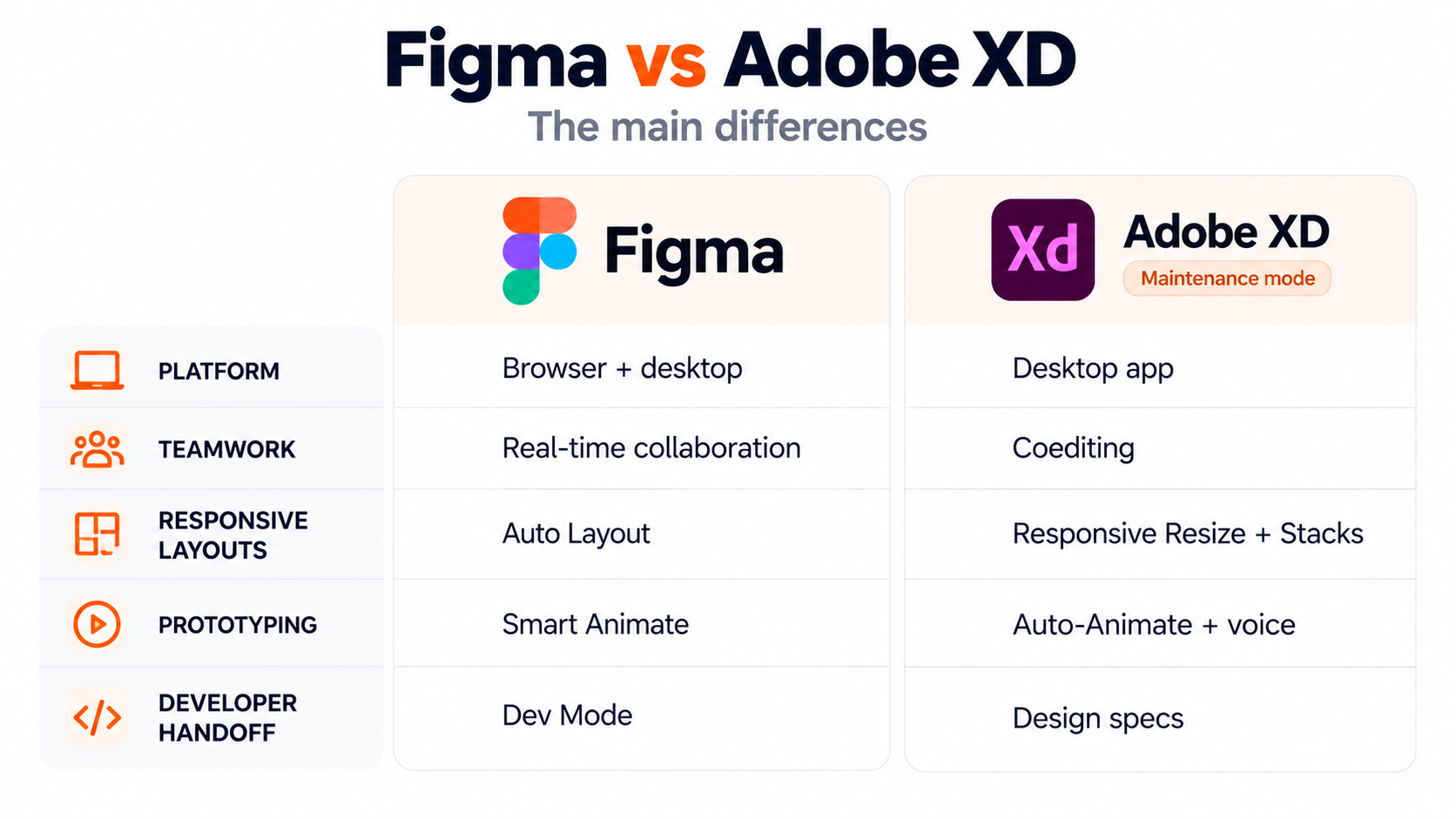
Most teams need to draw screens, share feedback, test ideas, and pass designs to developers. Here is how the tools compare at each stage.
1. Supported Platforms and Offline Use
Figma runs in a supported browser. It also has desktop apps for Windows and macOS. This gives a team a shared place to work, even when people use different computers.
Full use needs an internet connection. If you lose it, you can keep editing pages that were already loaded. Changes can sync when you reconnect. You cannot treat this as a full offline setup, since some files, shared libraries, and team features will be out of reach.
Adobe XD runs as a desktop app on Windows and macOS. You can edit local files offline, but cloud sharing and coediting need the internet.
If you often work without a steady connection, test that workflow before choosing. Open the files, fonts, and assets you need. A tool that works well in a connected office may feel quite different during travel.
2. Ease of Use and Learning
Both tools let you place text, shapes, and images on a canvas. You can then link screens to show a basic journey. These first steps are quite easy to grasp.
Figma has frames, which hold screens or groups of content. XD uses artboards for screen layouts. The names differ, but the first goal is the same: arrange the page so people know what to do.
Someone who already uses Adobe tools may find parts of XD familiar. Figma is a practical place for a new designer to start because they can learn and share work in the browser.
Try one small task before you judge either tool. Build a sign-up screen, add an error message, and make a phone version. This shows more than watching a feature tour.
Neither tool replaces design skills. Clear text, readable colours and sensible spacing still need thought and practice.
3. Collaboration and Client Feedback
Figma lets several people work in the same file at once. A designer can change a screen while a colleague checks another part. Comments keep questions close to the design.
XD also supports live co-editing through cloud documents. It has document history and lets teams share work for review. It would be wrong to say that XD has no team features.
Figma's browser access can make reviews simple for teams spread across different places. In either tool, though, the file owner must set the right permissions. A client who only needs to give feedback should not have edit access by default.
Agree on how feedback will be handled. Name the person who approves the screen and mark resolved comments. Keep one clear version for review. Without these habits, even a shared file can fill up with mixed requests and old ideas.
4. UI Design and Responsive Layouts
A design needs to work across multiple screen sizes. Text may also grow when a label changes or a page uses another language.
Figma's Auto Layout helps objects move and resize based on rules you set. For example, a button can grow when its label gets longer. A row of cards can keep its spacing as content changes.
XD has Responsive Resize, Stacks, and Repeat Grid. These help resize groups, keep gaps between items, and repeat content such as lists or cards.
Good UI/UX design uses these features to keep screens clear as content changes. A layout that looks neat with short sample text may break with a real customer's name.
Test a narrow screen, long text, and an empty state. Both tools can help with layout, but neither can decide what information matters most to your users.
5. Components and Design Systems
A component is a design part you can use again, such as a button or search box. A design system brings these parts together with rules for colours, text and spacing.
Figma supports components and variants. Variants group versions of a part, such as a small button, a large button and a disabled button. Variables store shared values, such as a colour or spacing amount. Libraries help teams reuse these choices, with some features tied to the plan.
XD has components, component states, and Creative Cloud Libraries. These also help teams share assets and keep repeated parts consistent.
This matters in SaaS dashboard design, where the same form or table may appear on many screens. A shared part can make updates easier.
For a growing team, compare the library controls you need. Also decide who owns each shared component and checks changes before others use it.
6. Prototyping and Animation
A still screen shows how a page looks. A prototype shows what happens when someone taps, clicks, or moves to the next step.
Figma supports linked screens, overlays and Smart Animate. Smart Animate can show changes between matching objects. Interactive components let you add behaviour to reusable parts, such as a switch that turns on and off.
XD supports screen links, overlays, and Auto-Animate. It also offers voice interactions, which can help when testing a voice-led flow.
Both can handle common journeys, such as sign-up, account setup, and checkout. When choosing mobile app prototyping tools, start with the action you need to test.
For example, can a new user find the payment button? Do they understand an error? Simple clicks may answer those questions. Add movement when it explains a change. A polished animation alone will not show whether the app is easy to use.
7. Developer Handoff
Developer handoff means giving the build team the design details they need. These include sizes, colours, fonts, images, and notes about how each screen should work.
Figma offers basic inspection and a separate Dev Mode with more tools for developers. Access depends on the plan and seat. XD lets designers share design specs so developers can inspect details and get assets.
For web application development, the handoff should explain more than the main screen. Show what happens when a page is loading, a list is empty, or a form fails.
Name your layers and mark which designs are approved. Explain any behaviour that a picture cannot show, such as what happens after a session ends.
Design specs and code snippets can help the build team. They do not, on their own, provide a complete, tested app with working data, accounts and business rules.
8. Plugins and Integrations
Plugins add small tools to a design app. They may help you find icons, add sample content, or check parts of a design.
Figma has community plugins, templates, and shared files. These can help with common tasks, but the quality and terms vary. Some are free; others charge a fee.
XD has plugins too. It also works with Adobe assets, including files from Photoshop and Illustrator. That can suit teams with an existing Adobe setup.
Make a short list of the links between tools that your work depends on. Check each one, rather than choosing by the size of a plugin library.
Before sharing client files with a plugin, review what data it can access. Try it on a test file first. For either tool, avoid making a vital step depend on a plugin that no one in the team has checked.
Figma vs Adobe XD Pricing: What Will You Pay?
Figma has a free Starter plan and paid plans with different seat types. A seat is the level of access given to a person.
At the time of writing in October 2026, a Professional Full seat is US16permonthwhenbilledannually,orUS20 when billed monthly. The annual option works out at US$192 per seat for a year, before any tax. Current options are listed on Figma's pricing page.
Do not count every client or reviewer as a paid designer. Work out who needs to edit, who needs Dev Mode, and who only needs to view or comment.
For XD, an old standalone price is not a reliable way to plan a new purchase. Confirm access with Adobe. Also count the time needed to move files or teach the team a new tool. The subscription is only one part of the cost.
Which Tool Should You Choose?
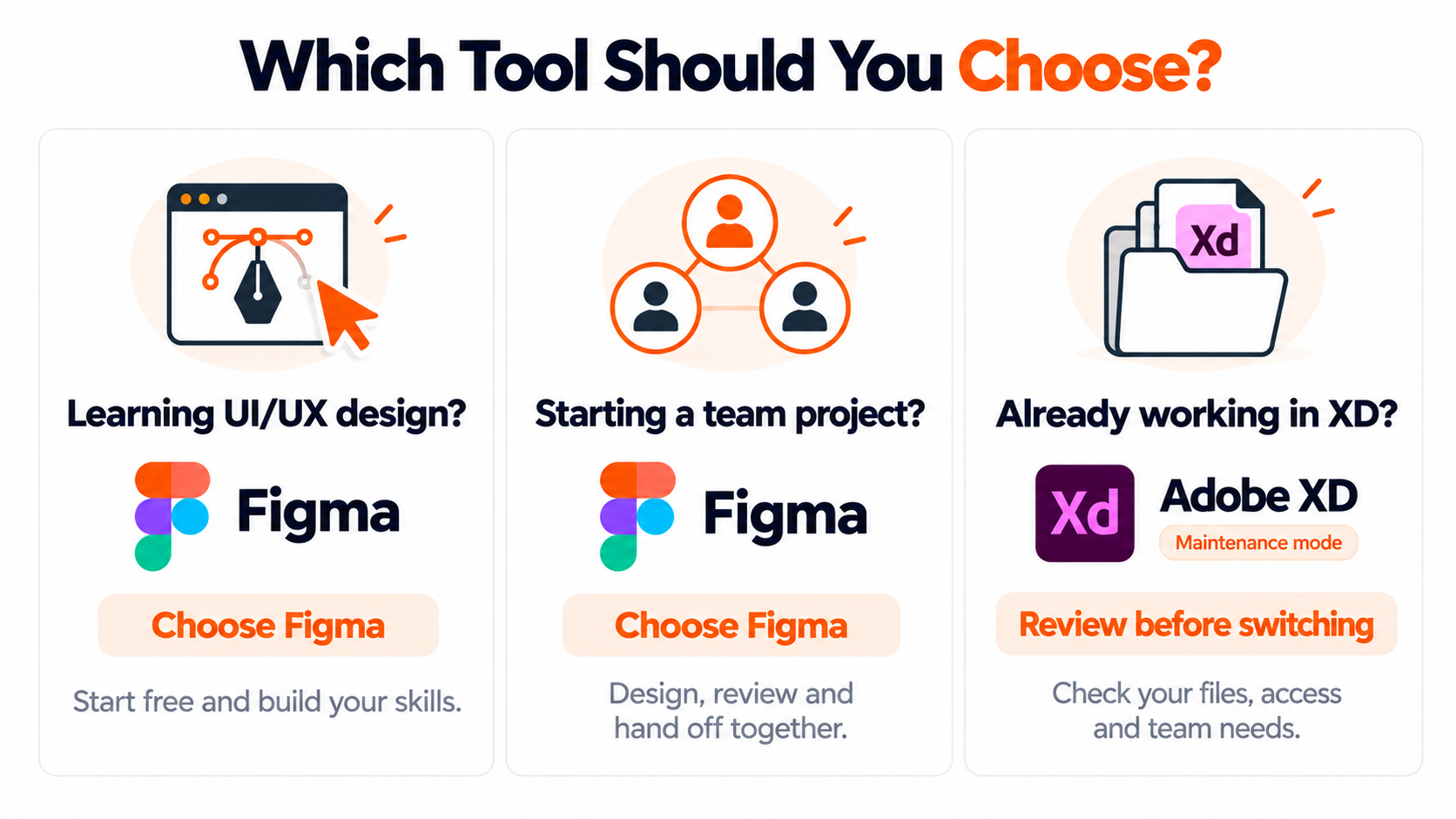
Your choice should fit the work you expect to do over the next year. Start with your files and your team, then check the features you need.
For New Designers and New Projects
We recommend starting with Figma for most new work. Browser access, shared files, and ongoing development make it a practical choice for learning and team projects.
Begin with a small task on the Starter plan. Build a few screens and ask someone to try the flow. Move to a paid plan when you need features that the free plan does not cover.
Keep your early work simple. Learn spacing, text size, and clear page structure before building a large library. Being able to explain why a screen works is more useful than knowing every menu.
For Teams Working with Clients and Developers
Choose a setup that everyone can use. Designers need to edit. Clients need to review. Developers need clear, approved details.
Figma is a strong choice when these groups share work often. Before buying seats, test one small handoff. Send a review link, gather comments, and ask a developer to inspect a screen.
Check who will own the files when a project ends. For agency work, agree on file access, library access, and the final handover from the start. This helps avoid a finished design being stuck in the wrong account.
For Teams with Existing Adobe XD Projects
An existing XD project needs a more careful choice. If the team has access and is close to launch, moving every file at once may add work with little immediate benefit.
Review how long the product will need design updates. A small final change and a fresh multi-year product do not carry the same needs.
If you plan to move to Figma:
- Back up the XD files and collect the fonts and assets.
- Pick a small but typical set of screens for a trial.
- Test the conversion method and inspect the result.
- Check text, spacing, components, and prototype links.
- Allow time to rebuild parts that do not transfer well.
Keep the original files until the new ones have been checked. Agree on a date to stop editing the old set, so the two versions do not drift apart.
Frequently Asked Questions
Is Adobe XD Included in Every Creative Cloud Plan?
Do not assume that every plan gives you XD access. Check the apps available in your Adobe account. If your company manages the plan, ask its admin to check your assigned access. Adobe support can confirm your options before you buy or change a subscription.
Can Figma Open Adobe XD Files Directly?
Figma's standard file import does not list .xd files as a supported format. You may need a separate conversion tool, exported assets, or a manual rebuild. Test a few screens first. Layers may look right, but components, fonts, or interactions may still need repair.
Can Clients Review Designs Without a Paid Account?
Clients can often view shared designs or prototypes without a paid editing seat. Access depends on the link settings and the team's rules. They may need to sign in to comment or open private files. Test the review link with the client before a meeting.
Do Developers Need a Paid Figma Seat?
Not every developer needs the same access. Basic viewing and inspection may be enough for some tasks, subject to file permissions. Dev Mode is available through eligible paid Full or Dev seats. Check what the developer needs to do before assigning a seat.