.svg)


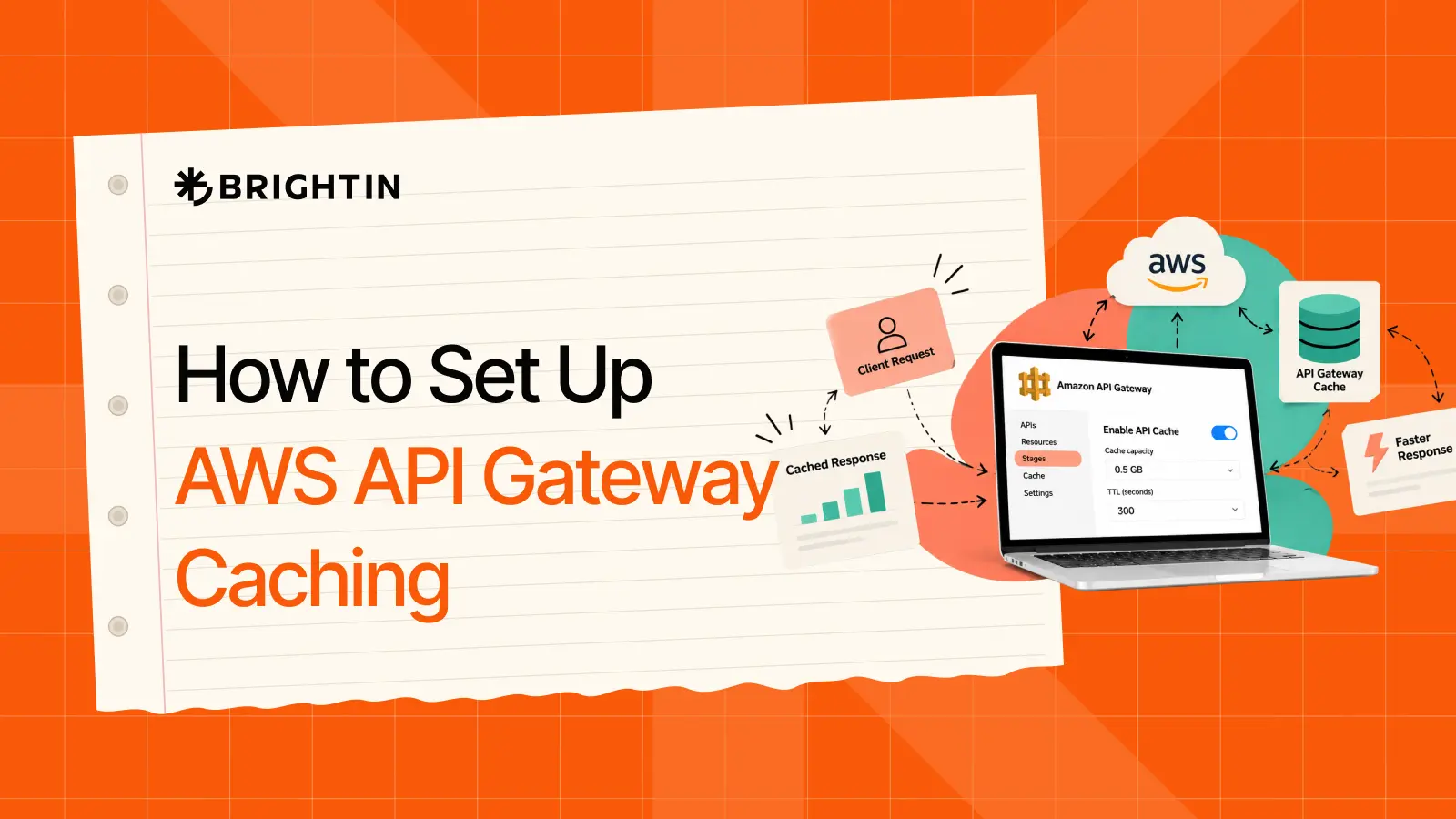
AWS API Gateway caching lets your API reuse saved responses instead of asking your backend to do the same work each time. When many people request the same data, this can reduce backend calls and help responses arrive sooner.
In this guide from Brightin Studio, we’ll build a small product API and add a cache. You’ll get the Lambda code, setup steps and commands to check the results.
This guide uses an API Gateway REST API. The cache has an hourly charge, so we’ll also cover costs and how to turn it off after your test.
How Does AWS API Gateway Caching Work?
Think of a shop where people keep asking for the same book list. Without a cache, each request reaches the backend, which builds the list again.
With caching, the first request can fetch and store that response. The next matching request can use the saved copy.
Two terms help explain this:
- Cache miss: No valid saved response matches the request, so the backend handles it.
- Cache hit: A valid saved response exists, so the cache returns it.
The saved copy has a time limit called time-to-live, or TTL. Once it expires, a new request must fetch fresh data.
In web application development, this suits shared data that gets frequent reads but changes less often.
What You Need Before You Start
Have these ready:
- An AWS account with permission to manage Lambda and API Gateway.
- Permission to create a Lambda execution role, or a suitable existing role.
- Access to CloudWatch to check cache activity.
- AWS CloudShell for the test commands.
Use the same AWS Region for your API and Lambda function. The examples below use London: eu-west-2.
We’ll create this endpoint:
GET /products?category=booksIt returns public sample data. There is no login in this demo. Do not use this open setup for private customer records.
How to Set Up AWS API Gateway Caching in a Proper Way
Step 1: Create a Small Lambda Function
Open AWS Lambda, choose Create function, then Author from scratch.
Name it cache-demo-products and select a supported Python runtime. For a new execution role, choose the option with basic Lambda permissions.
In the code editor, replace the contents of lambda_function.py with this:
import json
from datetime import datetime, timezone

PRODUCTS = {
    "books": [{"id": 1, "name": "Python Basics"}],
    "games": [{"id": 2, "name": "Chess Set"}]
}

def lambda_handler(event, context):
    params = event.get("queryStringParameters") or {}
    category = params.get("category", "books")

    if category not in PRODUCTS:
        return {
            "statusCode": 400,
            "headers": {"Content-Type": "application/json"},
            "body": json.dumps({"error": "Use books or games."})
        }

    return {
        "statusCode": 200,
        "headers": {"Content-Type": "application/json"},
        "body": json.dumps({
            "category": category,
            "products": PRODUCTS[category],
            "generatedAt": datetime.now(timezone.utc).isoformat()
        })
    }
Choose Deploy to save the code. Keep the handler set to lambda_function.lambda_handler.
The function reads the category and returns the matching list. If no category is sent, it uses books.
The generatedAt field records when Lambda built the response. It sits inside the response body so we can see it when testing the API.
Before moving on, create a Lambda test event:
{
  "queryStringParameters": {
    "category": "books"
  }
}
Run the test. You should get status 200 and a body containing the book list. Change books to games and check that the list changes.
Step 2: Create the REST API and GET Method
Open API Gateway and choose Create API.
Select REST API, then Build. Name the API cache-demo-api and choose a Regional endpoint.
Next:
- Open Resources and create a resource named products.
- Select /products and choose Create method.
- Set the method type to GET.
- Choose Lambda function as the integration type.
- Turn on Lambda proxy integration.
- Select your cache-demo-products function.
- Save and allow API Gateway to invoke Lambda if prompted.
For this public sample, leave authorisation set to NONE.
The proxy integration passes request details, including query parameters, to Lambda. Our function then returns the status code, headers and JSON body that API Gateway needs.
If you see a permission error, check that Lambda allows this API to invoke it before changing the cache settings.
Step 3: Add the Category Cache Key
A cache key tells API Gateway which requests can share a response.
Our API returns different lists for books and games. It must keep those responses separate.
Select the GET method, open Method request, and edit its request settings. Under URL query string parameters:
- Add a parameter named category.
- Select Caching for that parameter.
- Save the changes.
You can leave Required unchecked because the Lambda function has a default category.
Without the right key, a request for games could receive a saved book list. The API might be fast, but the result would be wrong.
Use the same rule for other inputs: if changing an input changes the response, review whether it belongs in the key.
For SaaS development, account data needs more care. A tenant ID can help separate cached responses, but it does not prove access. Check the caller’s permissions before serving private data, including on cache hits.
Step 4: Deploy the API and Enable Caching
Choose Deploy API, create a stage named test, and deploy.
A stage is a named version of your API that clients can call. Copy its Invoke URL for the next section.
Then open Stages → test → Stage details → Edit.
Under Additional settings:
- Turn on Provision API cache.
- Turn on Default method-level caching.
- Choose 0.5 GB as a starting capacity for this small demo.
- Save the changes.
Provisioning creates the cache. Method-level caching tells API Gateway to use it for responses. Both are needed.
Wait until the cache is active; creation can take a few minutes. These console controls are described in the AWS caching guide.
If you later change a resource, integration or cache-key parameter, redeploy the API to your test stage.
Step 5: Set the TTL and Check Method Settings
For this demo, set the cache TTL to 300 seconds, or five minutes.
That gives you time to repeat requests and inspect the saved response. It is a test value, not the best setting for every app.
In the cache settings:
- Set TTL to 300.
- Turn on Encrypt cache data.
- Enable Require authorization for per-key cache invalidation.
- Choose the option that rejects unauthorised invalidation requests with 403.
Encryption protects stored cache data. It does not replace access checks.
Next, expand the stage and select GET /products. Check Method overrides. An existing override may use different settings from the stage default. Make sure this method has caching enabled and uses the intended TTL.
Keep cache refresh access restricted. Normal users should not be able to force repeated backend calls just by asking the cache to refresh.
How to Test Your API Gateway Cache
You have set it up; now it is time to test it.
Use the deployed Invoke URL for these checks. The console’s method test is useful for checking the integration, but it does not test the deployed stage cache.
Open AWS CloudShell and set this variable. Replace YOUR_API_ID with your API’s ID:
API_BASE="https://YOUR_API_ID.execute-api.eu-west-2.amazonaws.com/test"
If you used a different Region or stage name, update those parts too.
Send the Same Request Twice
Run:
curl -sS "$API_BASE/products?category=books"Then run it again:
curl -sS "$API_BASE/products?category=books"Compare generatedAt. On a cache hit, the response keeps the earlier timestamp because Lambda did not build a new response.
Change the Category
Now request games:
curl -sS "$API_BASE/products?category=games"You should get the game list. Repeat that request to check its saved response.
Confirm the Results in CloudWatch
Open CloudWatch metrics, select API Gateway, and find your API and stage.
Check CacheHitCount and CacheMissCount, using the Sum statistic over your test period. Allow time for new metrics to appear.
Hits show requests served from the cache. Misses show requests sent to the backend while caching is enabled.
To start again with an empty cache, run:
aws apigateway flush-stage-cache \
  --rest-api-id YOUR_API_ID \
  --stage-name test \
  --region eu-west-2
This clears the whole stage cache. The next requests will need to fetch data again. Avoid frequent full flushes on a busy API.
How Much Does API Gateway Caching Cost?
API Gateway charges for the cache by the hour. The rate depends on the capacity and Region you select. API calls and other AWS services may also add charges.
Check the current rate on the AWS API Gateway pricing page before leaving a cache running.
Use this simple estimate:
Cache charge = hourly rate × hours provisioned
A cache left on for 30 full days runs for 720 hours. Low traffic does not stop that hourly cost, so fewer backend calls do not always mean a lower total bill.
When the demo is done, turn off Provision API cache and wait for deletion to finish. Flushing the cache only clears its data; it does not stop the cache charge.
Frequently Asked Questions
Can I Enable This Cache on an HTTP API?
No. The built-in stage response cache covered here is a REST API feature. If you created an HTTP API, these settings will not be available. HTTP API authorizer caching is a separate feature and does not store your product responses.
Why Is My API Gateway Cache Not Working?
Check that the cache is active, the method has caching enabled and TTL is above zero. Use the correct deployed stage URL. Then check whether each request uses the same key values. A changed key can cause a fresh cache miss.
How Do I Clear the API Gateway Cache?
Use Stages → your stage → Stage actions → Flush stage cache, or the CLI command above. For a single entry, an authorised request can use Cache-Control: max-age=0. With invalidation authorisation required, the caller needs IAM permission execute-api: InvalidateCache and a correctly signed request.
Does API Gateway Caching Work Only with GET Requests?
GET methods are cached by default when stage caching is enabled. Other methods can use method-level overrides. For this tutorial, keep caching on GET. Do not enable it for actions such as placing orders or making payments, where each request must be processed.
Does Changing Backend Data Update the Cache Immediately?
No. Changing the source data does not, by itself, clear the saved response. Users may keep seeing it until it expires or you refresh it. Choose a TTL that fits how fresh the data must be, and plan how important updates reach users.